
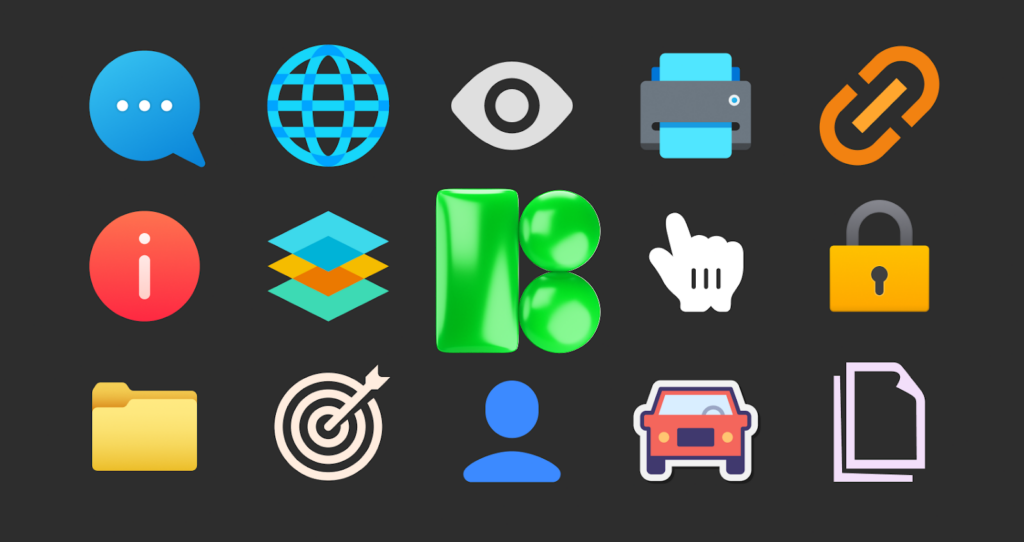
Cohesive design systems aren’t about the first button. They are about ensuring screen 1,000 feels related to screen one. For product teams, the icon library is usually where this consistency shatters.
Drawing custom icons burns resources. You might knock out the first 200 utility assets easily, but maintaining that set as a product scales to 2,000 features becomes a full-time role. Icons8 Icons targets this bottleneck. It operates less like a marketplace of random uploads and more like a managed infrastructure.
With over 1.4 million assets, the value here is style parity. You can find a “fingerprint” icon and a “server” icon that look like siblings-drawn by the same hand, with identical weights, for the specific operating system you are building for.
Solved Scenarios: From UI Refactors to Deck Design
The power of a library this dense appears when you apply it to high-friction challenges.
Scenario 1: The Native OS Port
Take a mature iOS app needing an Android port. Apple’s Human Interface Guidelines and Google’s Material Design speak different visual languages. iOS favors thinner strokes and specific rounding; Material relies on distinct geometric principles. You cannot simply copy-paste assets.
Using Icons8, a lead designer selects the “iOS 17” style (containing 30,000+ icons) for the source work. When shifting to the Android workspace, they don’t redraw a thing. They switch the library filter to “Material Outlined.” Because Icons8 maps the same metaphors across style packs-settings gears, user avatars, navigation arrows-the designer swaps the library while keeping semantic meaning intact. The Android app feels native instantly. No weeks-long vector sprint required.
Scenario 2: The Non-Designer Marketing Bottleneck
Marketing needs visuals for a release note. They need to represent “security,” “speed,” and “cloud sync.” Usually, this ends with someone pestering the design team or grabbing mismatched clip art from a search engine.
Instead, the content manager opens the Icons8 web interface. They pick a style matching the brand guidelines, perhaps “3D Fluency” or the strictly professional “Office” pack. They find the icons, but the default blue clashes with the company’s purple branding.
Using the in-browser editor, they paste the exact brand HEX code onto the 3D elements. They download high-res PNGs (up to 1600px) and drop them into the newsletter. Designers stay focused on the product; the email stays on-brand.
A Narrative: The Rapid Prototyping Workflow
Picture a Tuesday afternoon. A Senior Product Designer is prototyping a logistics dashboard. The stakeholder meeting is at 4:00 PM.
They open Figma and launch the Icons8 plugin. The project demands a strict “Windows 11” aesthetic to match an enterprise environment. They need something obscure: a shipping container on a flatbed truck.
Searching the plugin reveals a standard truck and a standard container, but not the combined unit in the specific Windows 11 Outline style. Drawing it from scratch in Illustrator would take too long.
They open the Icons8 Mac app (Pichon). They drag a “Truck” icon onto the canvas. Next, they find a “Container” subicon. Using the editor, they verify the stroke thickness matches the 2px weight of the UI and merge the elements. It’s not just about finding static images; it’s about assembling parts.
Later, the client requests a dark mode version. The designer selects their Icons8 collection, applies a white fill to the entire set of 40 icons instantly, and updates the prototype. Deadline met. Zero custom vectors drawn.
Editing and Technical Flexibility
Most libraries assume the download is the final step. Icons8 assumes it’s a draft. The in-browser editor is surprisingly capable.
Select an icon and you aren’t locked into the default aspect ratio. You can adjust padding to ensure the asset sits correctly within a button component. Add a background shape to turn a floating glyph into a circle-button instantly.
For complex states, use the “Subicon” feature. Overlay small status indicators-like a warning triangle or checkmark-onto a base icon. Handling this in the browser saves a round-trip to vector software.

Developers get a streamlined handoff via CDN links or direct code. Grab the Base64 code or an SVG embed string right from the asset view. This bypasses the tedious cycle of downloading files, unzipping them, and manually uploading to project folders.
Comparative Analysis
Context matters. Here is how Icons8 stacks up against common alternatives.
Vs. Open Source (Feather, Heroicons)
Open-source packs are great for code cleanliness and budget (free). But they lack depth. A pack might offer 250 icons. As soon as you need a niche metaphor like “biohazard” or “crypto-wallet,” you run out of options. You have to draw the missing pieces yourself, which breaks visual consistency. Icons8 wins on volume.
Vs. Flaticon / Noun Project
These are marketplaces aggregating content from thousands of designers. Finding 50 icons that look identical is a struggle. One “outline” icon might have a 2px stroke with rounded caps; the next has a 3px stroke with square caps. Icons8 creates core packs in-house or through strict curation. The 10,000+ icons in a single style actually match.
Vs. In-House Design
In-house offers ultimate control. But the cost is prohibitive. Unless you are Google, dedicating headcount to drawing generic UI elements is a poor use of budget. Icons8 acts as an outsourced, on-demand icon team.
Limitations and When to Look Elsewhere
Icons8 isn’t the right answer for every project.
- Unique Branding: If your product relies on a novel visual style as a key differentiator, stock styles like “Blue UI” or “Plumpy” will look generic. Popular styles get used everywhere.
- Vector Purists: Default SVG downloads are “simplified.” Paths are merged to reduce file size. If you need to manipulate vector nodes extensively later, uncheck the “Simplified” option before downloading. Otherwise, you deal with flattened shapes.
- Free Tier Restrictions: The free tier works for testing, but the 100px limit on PNGs won’t cut it for retina displays or marketing. Professional use requires a subscription.
Practical Tips for Power Users
- Batch with Collections: Never download one by one. Add assets to a Collection. This lets you bulk recolor the entire set to your project’s palette and download them as a font or sprite sheet in one go.
- Request Missing Assets: If a specific icon doesn’t exist, use the Request feature. It isn’t a suggestion box that gets ignored. The community votes, and high-demand icons (requiring about 8 likes) get produced.
- Standardize Padding: Fix padding in the editor before downloading. Having consistent whitespace baked into the image file saves CSS headaches later.
- Lottie for Interaction: Don’t ignore animated formats. JSON (Lottie) exports allow for lightweight, scalable animations. They replace static icons in mobile apps without bloating build size.
Treat Icons8 as infrastructure, not a gallery. It solves the scale problem, letting teams maintain strict visual guidelines without the overhead of a dedicated illustration department.